
If your work or school account has it, use Tools > Conditional notifications. A rule there emails the people you choose when a cell in a column changes, or changes to a value you set. On any other account, write a short Apps Script and run it from an installable On edit trigger. Both only fire when a person edits the cell, so a value that changes through a formula or an import won’t send anything.
How do you set up conditional notifications?
This route needs no code. Conditional notifications are only on certain work or school accounts, so if the option isn’t in your Tools menu, ask your admin (Google’s guide to conditional notifications).
- Click Tools > Conditional notifications, then Add rule.
- Under In this column, pick the column or range to watch.
- To send only for one value, click Add condition, choose Text is exactly, and type the value, such as “Completed”.
- Under Then take the following action, type the email addresses, or choose a column that holds them.
The recipients must have their own Google or Workspace addresses. Group addresses and outside addresses like Outlook or Yahoo aren’t supported. The email may arrive a little later, and several changes can be gathered into one message. View trigger history in the same panel shows the last 30 days of runs.
How do you do it with Apps Script?
Write a function that checks the edited cell and sends the email, then attach it to an installable On edit trigger. A plain onEdit function won’t work, because simple triggers can’t use services that need your permission, and sending email is one of them (simple trigger restrictions).
For example, a print shop keeps an Orders tab with the order number in column A, the customer’s email in column C, and a Status in column D. When someone sets a Status to “Ready”, the customer should hear about it.
- In the spreadsheet, click Extensions > Apps Script.
- Replace the starter code with this function, then click Save.
function emailWhenReady(e) {
  const sheet = e.range.getSheet();
  if (sheet.getName() !== 'Orders' || e.range.getColumn() !== 4) return;
  if (e.value !== 'Ready') return;
  const row = e.range.getRow();
  const order = sheet.getRange(row, 1).getValue();
  const email = sheet.getRange(row, 3).getValue();
  MailApp.sendEmail(email, 'Order ' + order + ' is ready', 'Your order ' + order + ' is ready to collect.');
}- On the left, click Triggers, then Add Trigger (installable triggers).
- Choose
emailWhenReady, set the event source to From spreadsheet and the event type to On edit, then click Save and allow access when Google asks.
The trigger runs under the account of whoever created it, so every email goes out from your address, whoever changed the cell. Apps Script can send to 100 recipients a day on a personal Google account and 1,500 on a Workspace account (Apps Script quotas).
Why doesn’t the email send when a formula changes the cell?
Edit triggers only run when a person changes a value. A formula recalculating, another script writing to the cell, or an API request doesn’t count as an edit (how onEdit runs). Conditional notifications have the same gap, and changes that arrive through IMPORTRANGE or Connected Sheets won’t trigger them either. To catch those, watch the cell a person actually edits, or run a script on a time-driven trigger that checks the values on a schedule.
In Sheets, the automation lives apart from the data, so each new rule means another script or another rule to set up and keep track of.
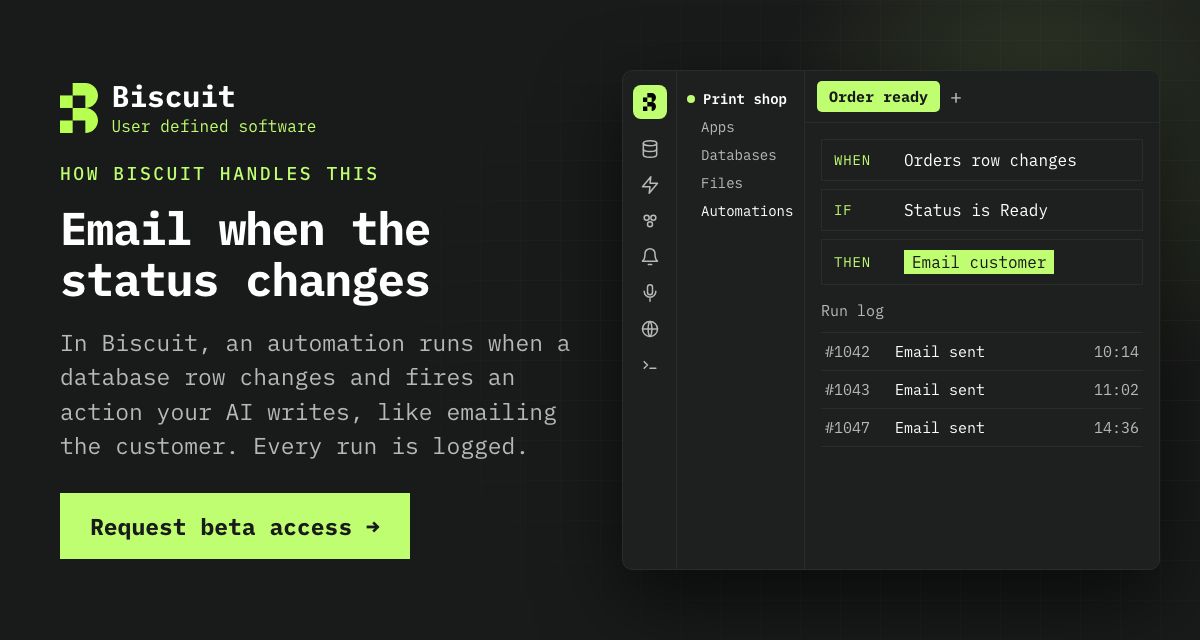
Request beta access to Biscuit
References
- Use conditional notifications, Google Docs Editors Help
- Simple triggers, Apps Script, Google for Developers
- Installable triggers, Apps Script, Google for Developers
- Quotas for Google services, Apps Script, Google for Developers
All links checked and active as of 27 October 2026.