
You can’t share one tab on its own. Sharing in Google Sheets applies to the whole spreadsheet, and anyone who can open the file can reach every tab in it, hidden ones included. To share one tab, give it a file of its own. Copy the tab into a new spreadsheet, or pull it in live with IMPORTRANGE, then share that file.
Why doesn’t hiding the other tabs work?
Hiding a tab tidies the view, but it doesn’t make the tab private. Editors can unhide it from the View menu, and a viewer who makes a copy of the file can unhide it in the copy (Google’s help on hiding sheets). Protecting a tab doesn’t help either. It stops people editing the tab, and everyone with access can still read it.
How do you share a copy of one tab?
Copy the tab to a new spreadsheet and share the new file. This suits people who only need the data as it stands today.
- Click the down arrow on the tab you want to share.
- Click Copy to, then New spreadsheet.
- Open the new spreadsheet, give it a name, and click Share.
The copy doesn’t change when the original does. When the numbers move, copy the tab again and send the new file.
How do you share one tab that stays up to date?
Make a new spreadsheet, pull the tab into it with IMPORTRANGE, and share the new file with view-only access.
- Create a new spreadsheet.
- In cell A1, type
=IMPORTRANGE("URL of the original", "Schedule!A1:F200"), using your file’s address and your tab’s name and range. - Click the
#REF!error that appears, then click Allow access. - Click Share and give each person the Viewer role.
Keep everyone on Viewer. Once you allow access, any editor of the new file can write their own IMPORTRANGE formula and pull any part of the original, every tab included (Google’s IMPORTRANGE guide). If the original has downloading, printing and copying turned off, new IMPORTRANGE formulas won’t work. Each import is capped at 10 MB of data, so import only the rows people need.
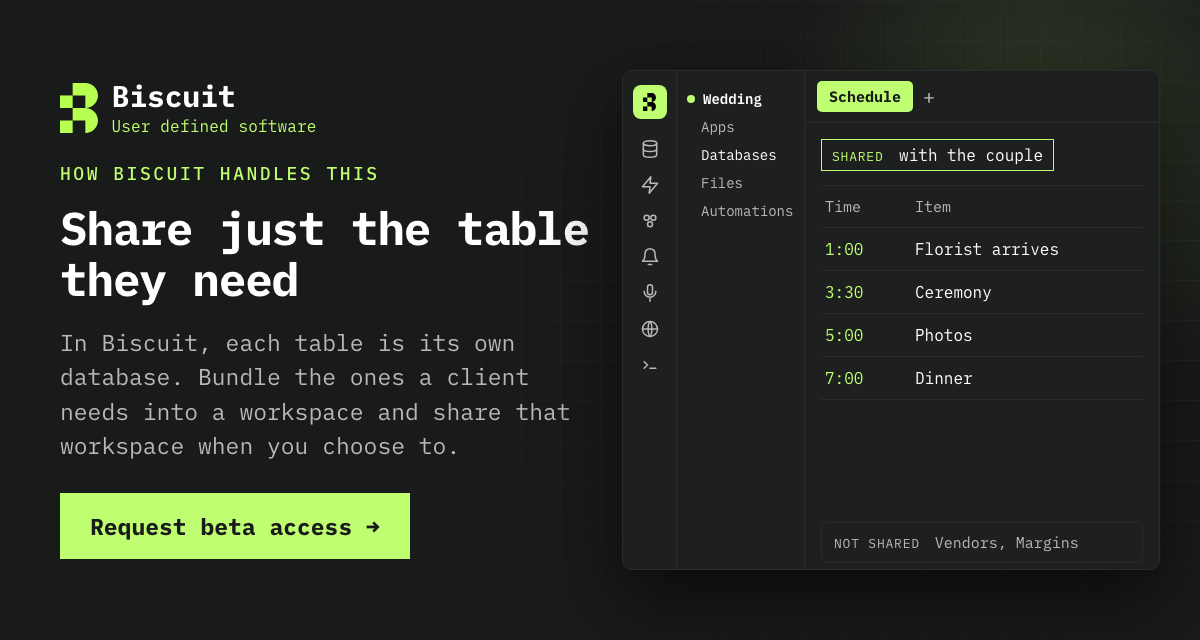
For example, a wedding planner keeps one spreadsheet with Schedule, Vendors and Margins tabs. The couple should see the day’s timings but not what each vendor costs. The planner makes a file called “Our wedding day”, imports the Schedule tab into it, and shares it with the couple as viewers. When the florist’s arrival moves from 2pm to 1pm in the planner’s file, the couple’s file shows the new time.
Can you publish just one tab?
Yes, but publishing makes it public. File > Share > Publish to web lets you publish the whole spreadsheet or individual sheets. People who open the link see a version they can’t edit, with the values but not your formulas (publish a file). Depending on your account’s settings, a published sheet is visible to everyone on the web or to everyone in your organisation. That’s fine for a price list or a timetable, and wrong for anything private.
In Sheets, the file is the unit of sharing, so each audience for a tab needs a file of its own and a copy or an import to keep it current.
Request beta access to Biscuit
References
- Protect, hide & edit sheets, Google Docs Editors Help
- IMPORTRANGE, Google Docs Editors Help
- Make Google Docs, Sheets, Slides & Forms public, Google Docs Editors Help
All links checked and active as of 27 October 2026.